Tripo Segment vs Hi3D Split for 3D Parts in 2027
Compare Tripo Segment and Hi3D Split on the same lantern and tool chest. See which parts move cleanly, exact GLB metrics and actual charges.
On a wooden tool chest, Tripo Segment isolated the latch. Hi3D Split gave us a selectable latch too, but moving it also lifted a thin strip from the chest’s horizontal trim. Both services separated a mining lantern’s carrying loop. The results came from the same two original GLBs. That makes the comparison useful when deciding whether to use an automatic cut for recoloring, animation or part reuse.
Key takeaway
- Both routes isolated the lantern’s carrying loop. The selected Hi3D handle had 61 open boundary edges after exact-position welding in our inspection. The selected Tripo handle had 95.
- On the chest, Tripo’s selected object moved the latch by itself. The nearest Hi3D counterpart carried a narrow band of adjacent trim. It was one connected component in both exports.
- Tripo returned 19 lantern meshes and 24 chest meshes as separate scene roots. Hi3D returned 14 and 30 mesh objects under one scene root per file, with one material and one image per GLB.
- Hi3D settled at $0.40 and Tripo at $0.48 per prop. All four segmented files passed format validation with zero errors and zero warnings. Every resulting mesh object had at least one open boundary edge in this inspection.
Compare the same two original meshes
The inputs were the mining lantern generated with Hunyuan and the wooden chest generated with Tripo from our earlier text-to-3D test. The lantern source contained 40,000 triangles. The chest source contained 34,662. Each source GLB had one mesh, one material, and one embedded image. We used each original GLB as the input on both routes, so source geometry and appearance were matched.
We reused the two completed Tripo Segment exports from our Tripo part inspection. That request enabled segmentation and kept the route’s default geometry settings. On November 14, 2026, we submitted the same input URLs to Hi3D Split with split_mode: "general", level: "medium" and GLB export. Each result was downloaded and examined before any edits. Hi3D’s character template and other granularity settings were outside this comparison.
A meaningful selection depends on what the object will do. The lantern target was the complete carrying loop, with the cap and housing left in place. The chest target was the front clasp, without the surrounding horizontal trim, lid or front panel. We set these two practical checks for the comparison and used the Tripo parts as references to locate the closest Hi3D objects. We did not have a face-by-face annotation for the rest of the props.
Compare the assembled models and the exported groups
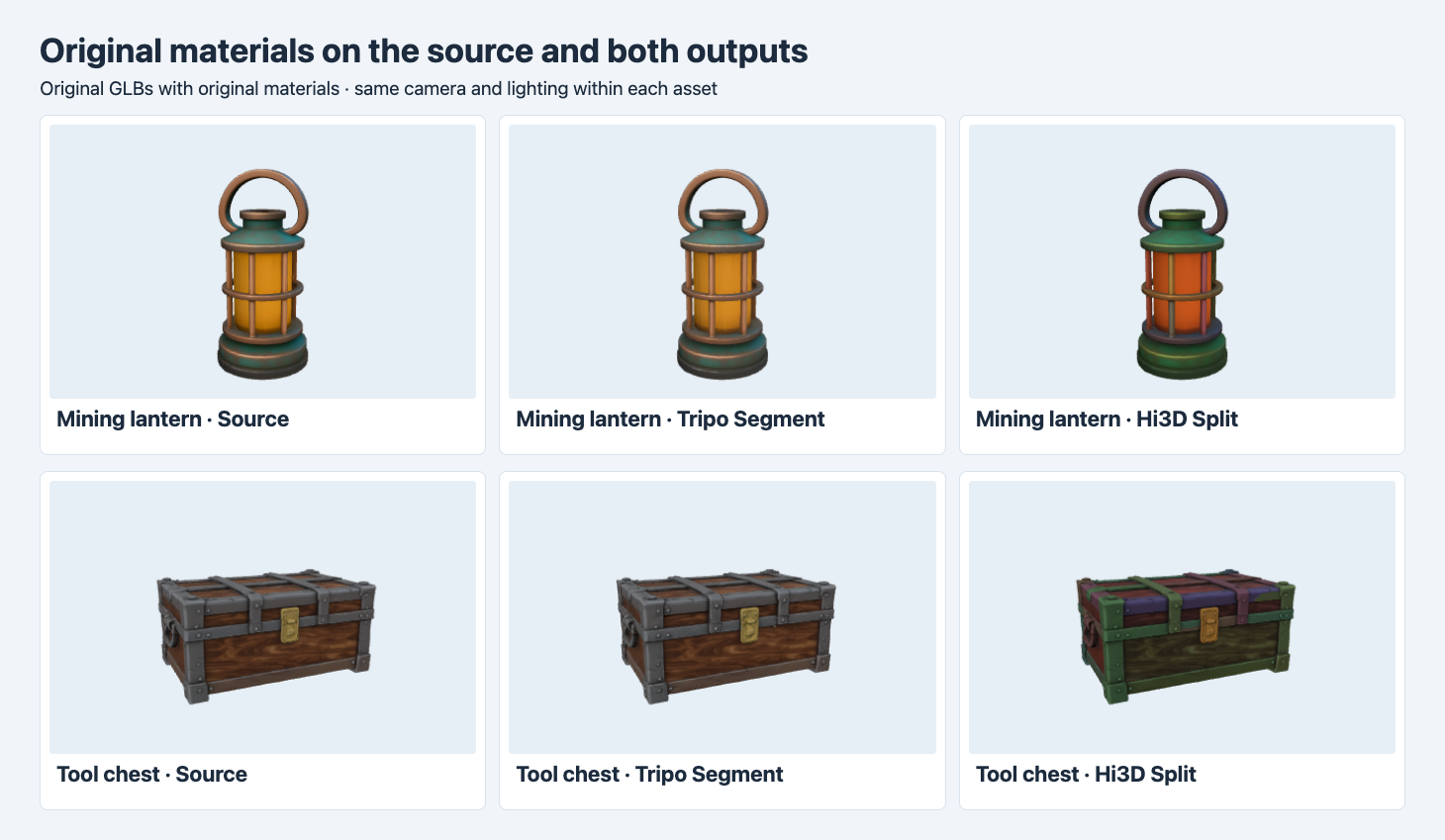
Each row uses the same camera and lighting. The material comes from the source or from the original service output.
The Tripo outputs look close to their inputs in these assembled views. On the lantern, the shades of amber and blue-green remain similar. On the chest, the brown boards and gray straps retain a similar appearance. In the original Hi3D exports the lantern’s side and housing show additional orange and green, and the chest straps pick up distinct green, violet and red tints. Those tints are visible with the original exported materials. The rendered result does not reveal the provider’s internal material process.
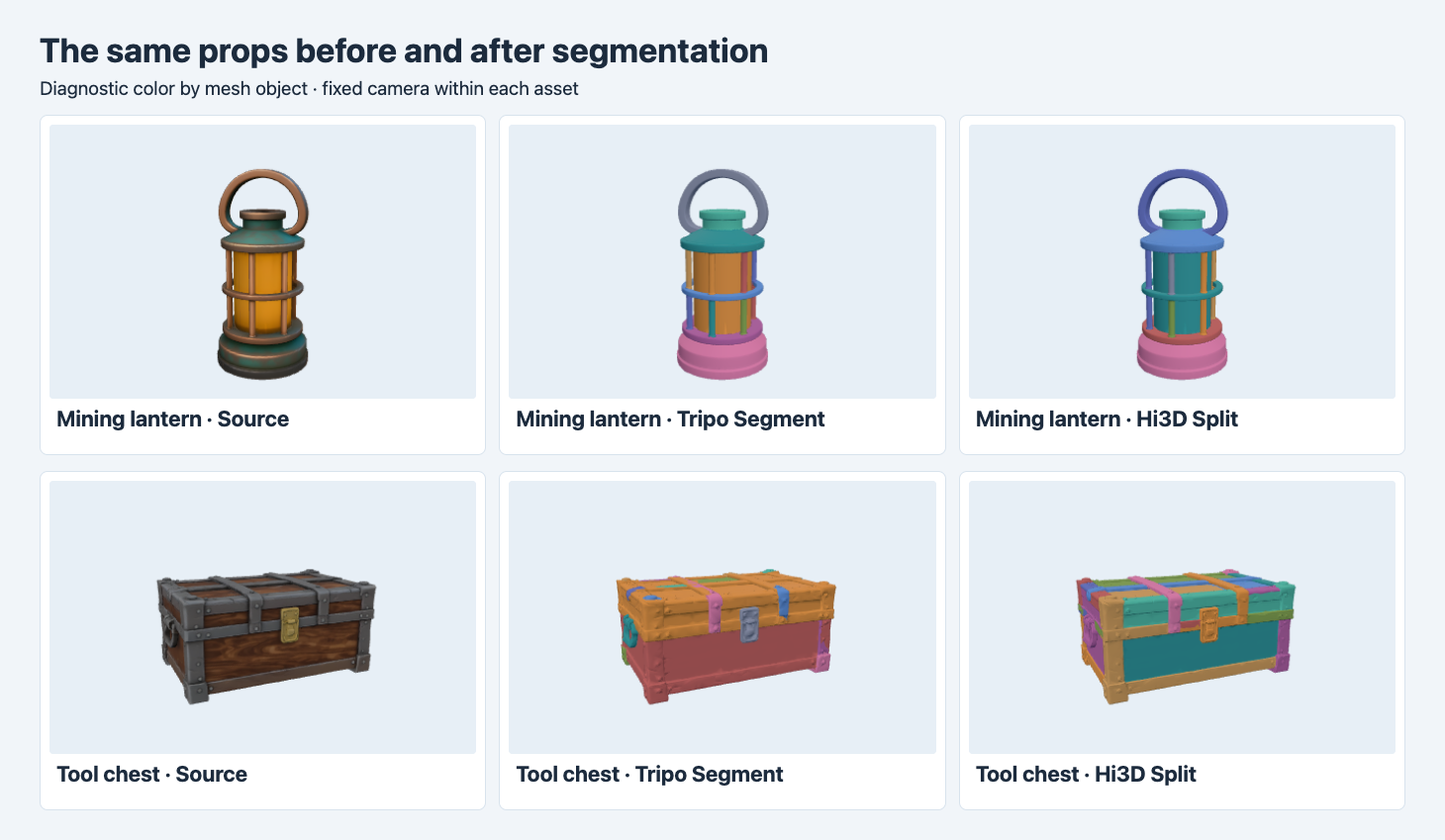
Colors in the middle and right columns identify mesh objects for inspection. They are viewer overrides and are separate from the original material colors above.
The diagnostic view helps locate boundaries, but an exported mesh object is an inventory item. It may cover several visible features or hold several disconnected islands. A finer-looking segmentation does not directly translate into more independently useful parts. In these results Hi3D returned fewer mesh objects for the lantern and more for the chest. The chest’s extra divisions did not solve the latch-and-trim grouping.
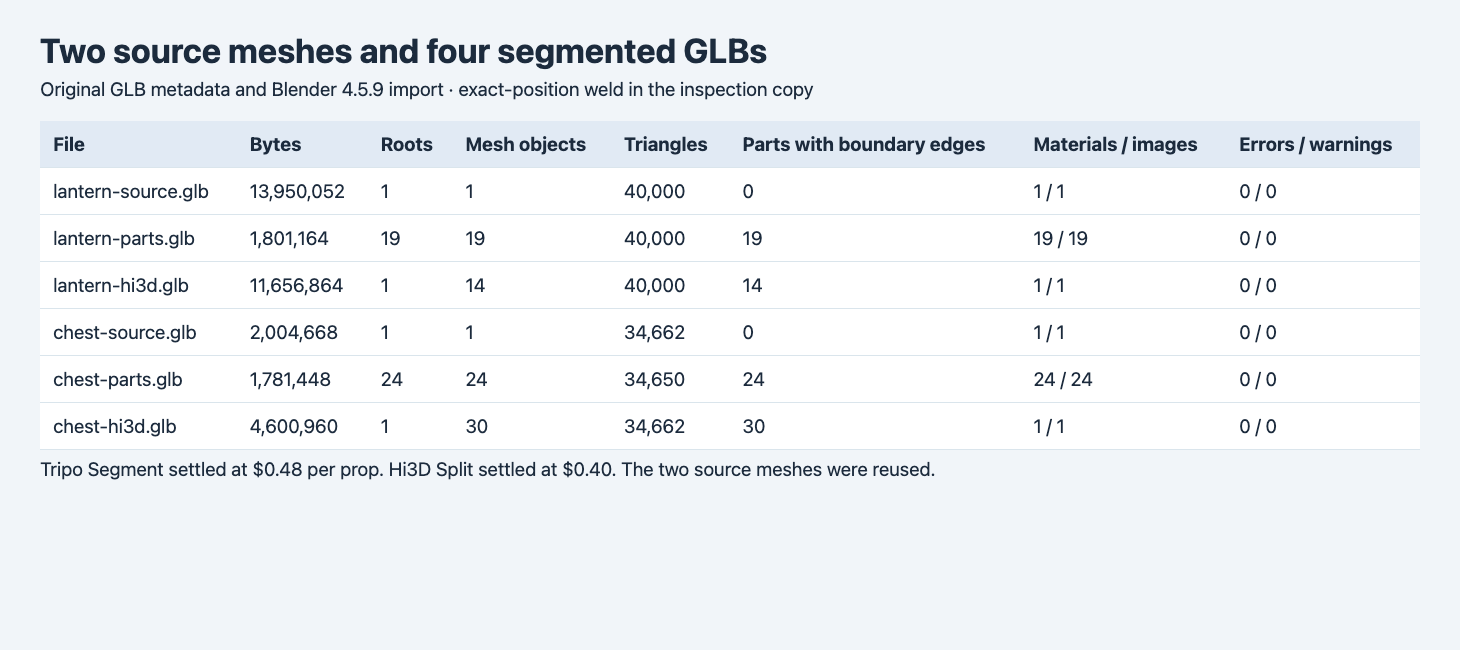
The counts combine the unmodified GLB containers and Blender 4.5.9 imports. A scene root and a mesh object measure different things.
| Asset | Route | Mesh objects | Scene roots | Triangles | GLB bytes | Charge |
|---|---|---|---|---|---|---|
| Lantern | Source | 1 | 1 | 40,000 | 13,950,052 | — |
| Lantern | Tripo | 19 | 19 | 40,000 | 1,801,164 | $0.48 |
| Lantern | Hi3D | 14 | 1 | 40,000 | 11,656,864 | $0.40 |
| Chest | Source | 1 | 1 | 34,662 | 2,004,668 | — |
| Chest | Tripo | 24 | 24 | 34,650 | 1,781,448 | $0.48 |
| Chest | Hi3D | 30 | 1 | 34,662 | 4,600,960 | $0.40 |
The four jobs settled at $1.76 in total, excluding prior generation. Tripo’s original result was smaller for both props, even with one material and one image per object. Hi3D packaged each result with one material and one embedded image. A material count measures assignments in the export. It cannot predict the encoded texture footprint or whether the appearance was preserved. If web delivery matters, measure the whole file.
Move the handle and look at both attachment points
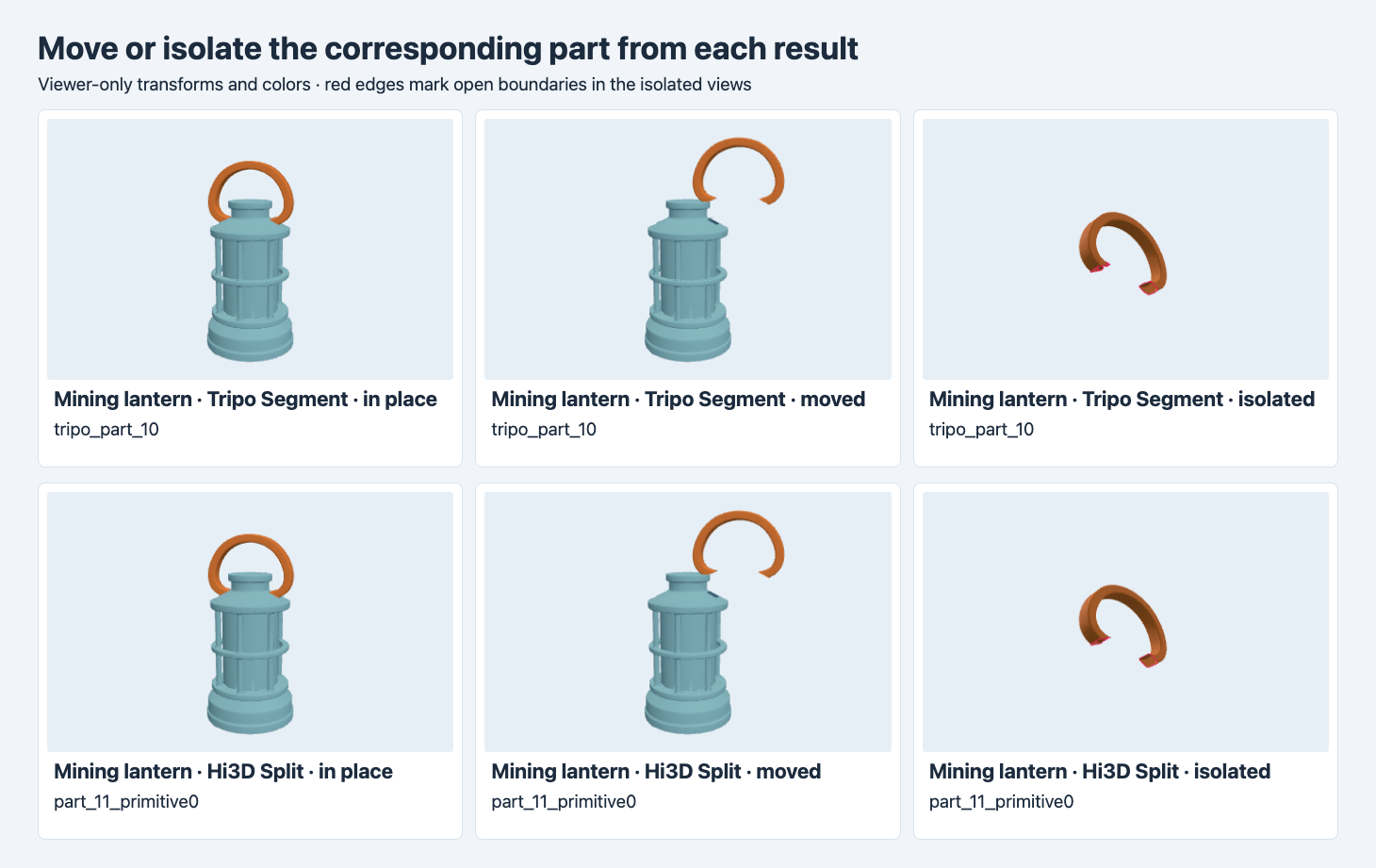
Top row is Tripo, bottom row Hi3D. Orange highlights the selected mesh. Red marks edges referenced by a single face after an exact-position inspection.
In Blender, the Tripo loop is tripo_part_10, and the Hi3D loop is part_11_primitive0. Both separate from the main body with a translation. The Tripo loop has 4,369 triangles and the Hi3D loop has 4,451. Both have open edges at the cut ends. Within each part, the inspection grouped vertices with identical positions, counted references to each undirected edge and marked those with one incident face. This check uses an inspection copy and leaves the delivered file intact.
The lower boundary count of 61 versus 95 is specific to the two meshes and the distribution of edges. It does not measure a gap in millimeters or how hard it would be to cap. The cut is acceptable if the loop only needs to be selected and recolored while assembled. If it will be moved away from the body, inspect the exposed underside and decide whether to fill the open surfaces. For a swinging animation, place and test the pivot at the attachment axis. The selected Tripo mesh has an offset Blender origin, while the Hi3D mesh origin is close to zero in the imported scene. Neither number by itself establishes a working hinge.
Move the latch and watch what comes with it
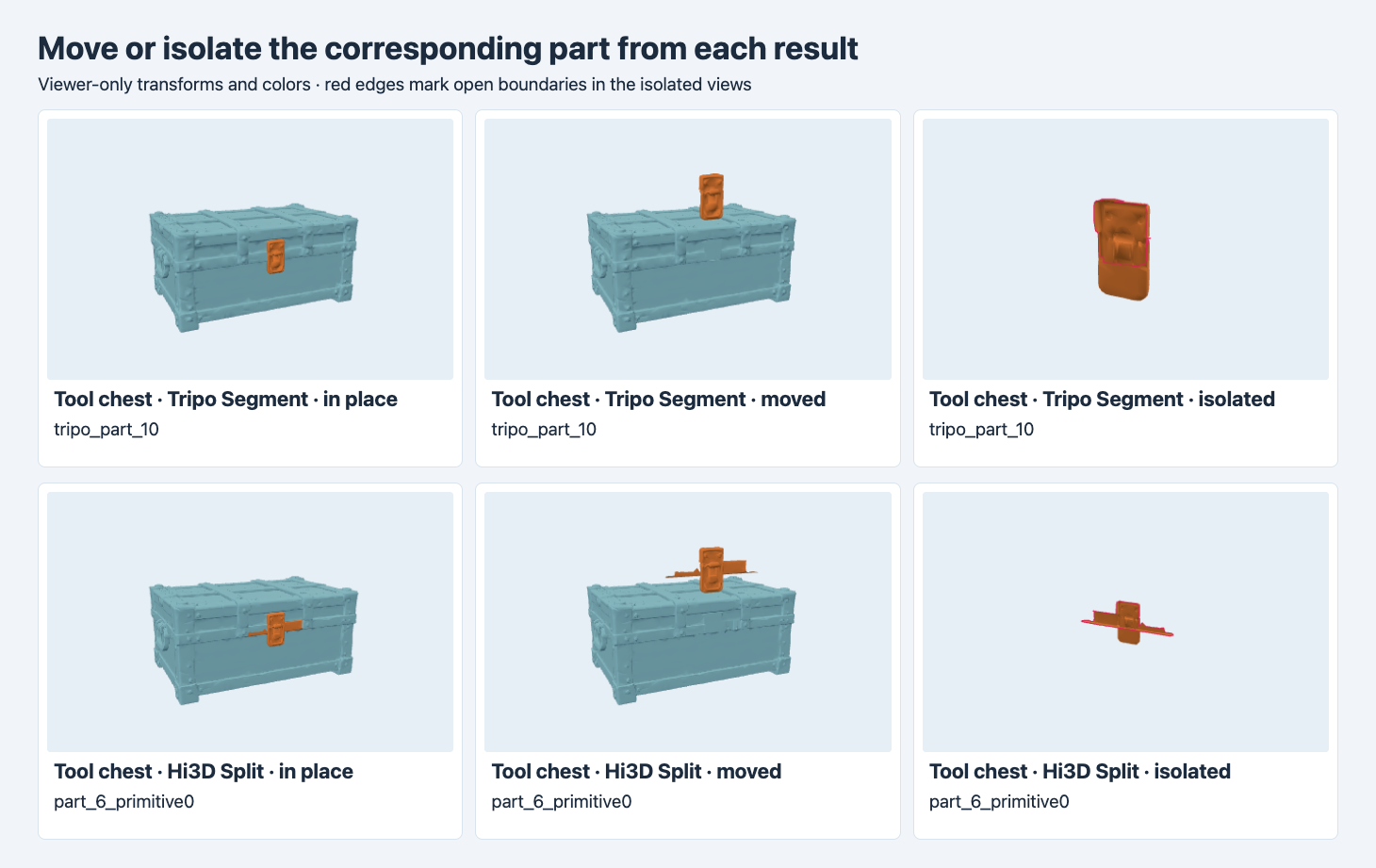
Tripo’s selected mesh contains the visible latch. Hi3D’s includes a narrow strip of adjacent trim that follows the latch when moved.
To pick the candidate for each Hi3D result, we centered both exports of the prop independently and scaled each to the same longest bounding-box dimension. We measured the fraction of vertices from the Tripo selection within 0.1% of that dimension from the surface of each Hi3D object. The best match for the chest, part_6_primitive0, covered about 99.5% of the sampled Tripo latch vertices. In the reverse direction about 83.1% of that Hi3D object’s vertices were that close to the Tripo surface. The comparison locates corresponding regions without implying one-to-one vertices or measuring surface area.
The translated view makes the grouping visible. The orange Hi3D selection stretches left and right into the chest trim. Tripo’s latch stays within the clasp region at this view. The Hi3D object remains one connected piece in the welded inspection, so counting islands would not detect this issue. For a latch animation on this prop, Tripo gives a cleaner selection to start with. The open edges and hinge setup still need inspection. For a fixed decoration, a group that includes trim may be acceptable if it matches the planned material assignment.
Reproduce the check on one part before processing a batch
Choose an intended moving or editable part before submitting a model. Keep its name, region and expected neighboring surfaces in a short rubric. Then record the GLB hash, run ID, output bytes, root structure and intended operation for the part that you pick. For Hi3D, this is the request used for the two props, with a placeholder asset address. Send it to POST https://api.sandbase.ai/v1/run from your server and check GET /v1/run/{id} for completion. Calls can incur a charge.
{
  "model": "hitem3d/hi3d/split",
  "model_url": "https://example.com/assets/prop.glb",
  "split_mode": "general",
  "level": "medium",
  "export_format": "glb"
}
In the first visual pass, compare the assembled files with their original materials. Use a different view to color meshes by object, then move the selected part in isolation. Inspect its original position and the exposed counterpart on the body. A file that passes GLB validation can still need manual separation, a new pivot or geometry repair. For the rest of the intake checks, see our generated GLB QA workflow.
For a multi-file component export, see the Hunyuan FBX to GLB workflow. It records the actual returned file types and shows how shared origins affect pivot placement.
The interactive exploded-view walkthrough repairs the Hi3D latch selection from this test and lets you move it in the browser.
FAQ
Does a single root mean the output contains one mesh?
Each Hi3D export had a single root. Blender imported 14 or 30 mesh objects underneath its hierarchy. Tripo’s output had one root per mesh. Count the nodes and actual mesh objects separately.
Are the outputs ready to print as separate parts?
All four files had valid GLB containers, and all segmented mesh objects showed open boundaries in the inspection. Printing requires checks of watertightness, thickness, tolerances and the assembled fit. We did not slice or print these props.
SandBase ran and billed the segmentation jobs. Screenshots show downloaded GLBs, with diagnostic colors and transforms identified in the captions. The cover is illustrative.
Found this useful? Share it