SandBase YouTube Transcript Generator: Transcript, Summary, Chapters and API
Turn a YouTube link into a timestamped transcript, AI summary, chapters and key points, then automate the same workflow with the SandBase captions API.
A 48-minute interview can contain one useful quote, three actionable ideas, and a lot of material you do not need. The awkward part is finding those pieces without dragging the playhead back and forth. The SandBase YouTube Transcript + AI Summary tool turns a public YouTube link into searchable, timestamped text, then adds a short summary, ready-to-paste chapters, and key points. It is useful when one person needs to inspect a video now; the linked YouTube captions API is the path when a product or agent needs to repeat the job.
Key takeaway
- Paste a YouTube watch,
youtu.be, or Shorts link—or an 11-character video ID—to start.- Get the full timestamped transcript, a 2–4 sentence AI summary, chapters, and concrete key points.
- Copy the results or download the transcript as TXT or SRT; the page lists 16 transcript languages as of October 30, 2026.
- The tool reads an existing human or automatic caption track. It does not promise speech-to-text for a video with no captions.
- For automation, call
youtube/web-v2/video-captionsthrough the SandBase public-data API.
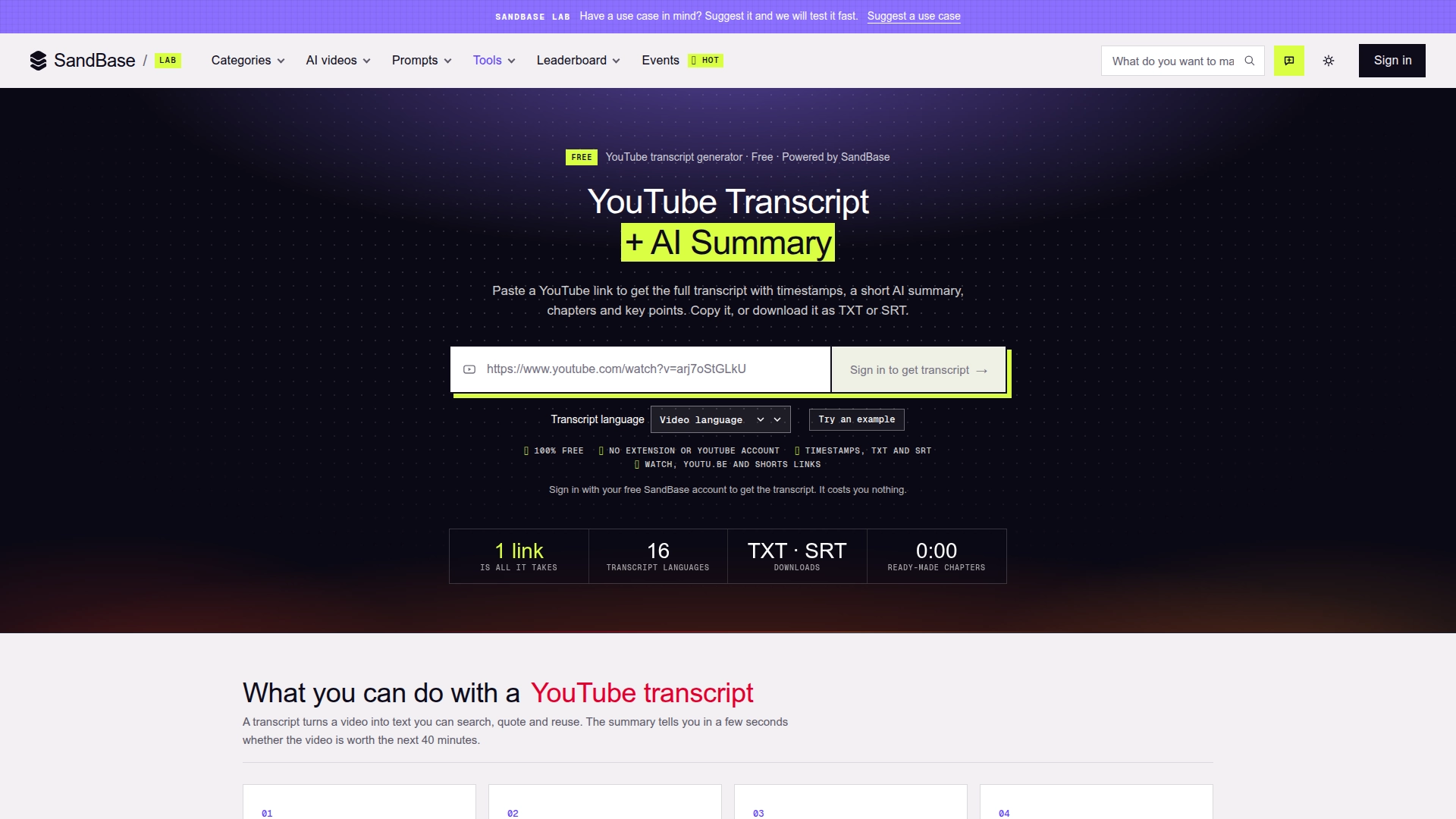 The Lab input keeps the manual workflow deliberately small: one link, an optional transcript language, and a free SandBase sign-in (captured October 30, 2026).
What the tool actually does
The visible workflow has three stages:
- Normalize the video input. The form accepts a regular watch URL, a
youtu.beshort link, a Shorts URL, or the raw video ID. - Read the caption track. The underlying SandBase YouTube captions API requests the available human or automatic captions, including timestamps.
- Shape the result for reading and reuse. One language-model call produces the summary, chapters, and key points from the timed transcript.
That separation matters. The transcript is source material taken from the video’s caption track; the summary and chapter labels are generated interpretations of that material. If an exact quote, number, or attribution matters, verify it against the timestamped transcript and the video—not the summary alone.
The tool requires a free SandBase account. It does not require a browser extension or a YouTube account on the user’s side. That makes it a good fit for an occasional lookup, but it is not an anonymous batch extractor.
The four outputs and why each exists
The product does more than dump a wall of subtitle text. Each output serves a different decision:
| Output | What it contains | Best use | Export |
|---|---|---|---|
| Full transcript | Every caption line with its start time | Search, quoting, close reading | Copy, TXT, SRT |
| Summary | A 2–4 sentence account of what the video says | Decide whether to watch or read further | Copy as Markdown |
| Chapters | Sections with linked start times | Navigation and YouTube descriptions | YouTube chapter format |
| Key points | Facts, numbers, steps, and takeaways | Notes, briefs, and content planning | Copy as Markdown |
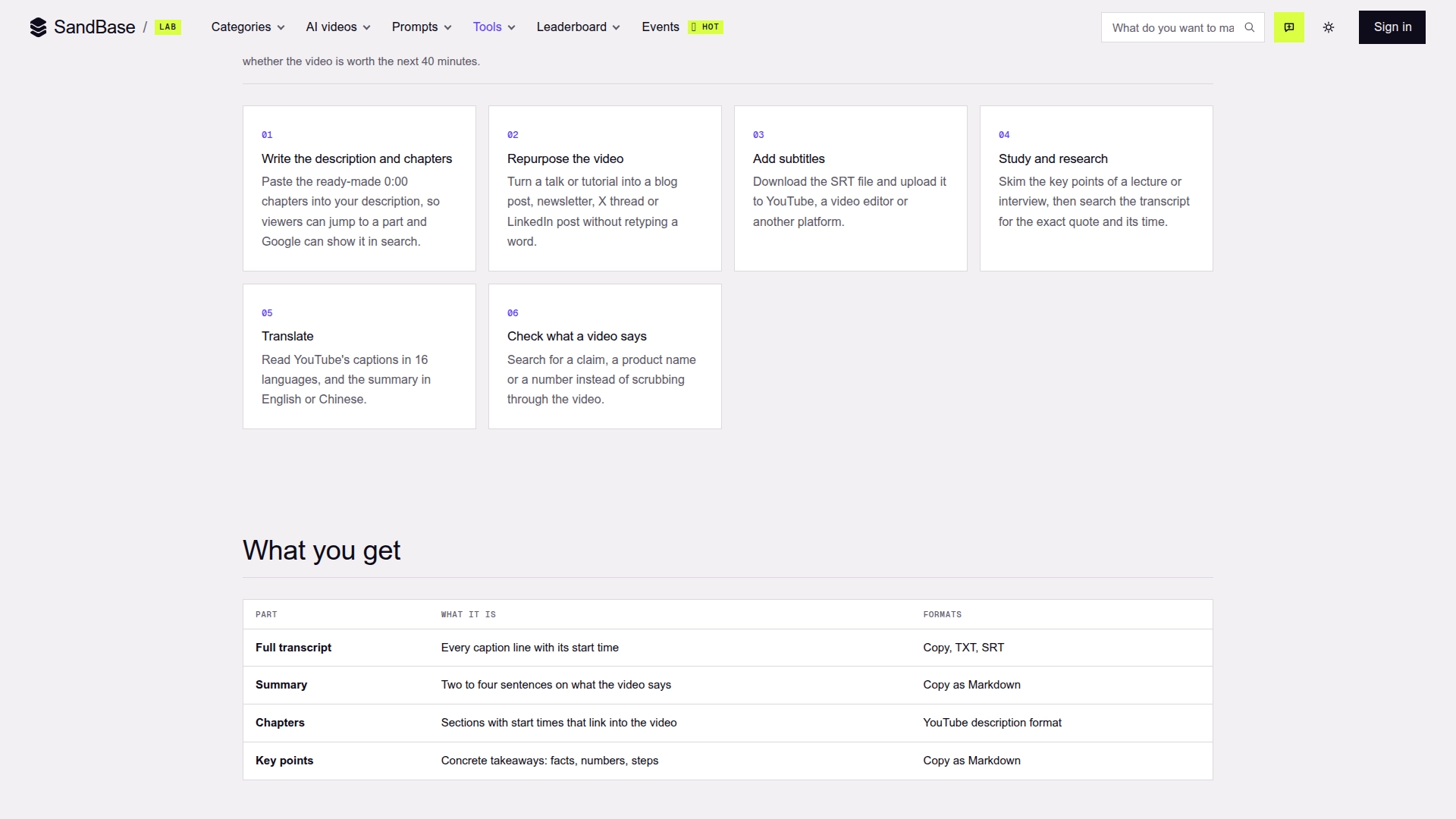 The output matrix is a useful reminder that “get the transcript” and “understand the video” are separate jobs (captured October 30, 2026).
This is the strongest part of the design. A transcript is evidence, but it is a poor preview. A summary is a good preview, but it is a lossy representation. Chapters improve navigation, while key points make the content portable into a research note or editorial brief. Keeping all four avoids forcing one generated block to do every job.
Where the tool saves the most time
1. Research a lecture, interview, or technical talk
For research, the first question is often not “What did the entire video say?” It is “Did the speaker mention this claim, product, or number?” Search the transcript, jump to the matching timestamp, and listen to the surrounding passage before citing it.
This is especially useful for long interviews where a title or thumbnail overstates one small section. The transcript lets you separate what the guest actually said from how the video was packaged. The AI summary can triage the video; the timestamped source should carry the evidentiary weight.
2. Turn one upload into several editorial assets
A creator or marketing team can use the summary as a brief, the chapters in the YouTube description, and the key points as the outline for a newsletter, blog post, X thread, or LinkedIn post. The transcript removes retyping, but it does not remove editorial work: quotations still need context, and generated summaries should be checked for emphasis and omission.
The practical win is not “AI writes every channel.” It is that the first clean text artifact exists within the same workflow as the navigation and briefing artifacts.
3. Add or repair subtitles
SRT export is useful when a creator wants a caption file for YouTube, a video editor, or another publishing platform. Because the tool reads the video’s existing caption track, review names, technical terms, and punctuation before treating the file as final. Automatic captions are particularly likely to mishandle brand names and code vocabulary.
TXT is the better format for search, LLM input, or a knowledge base. SRT is the better format when timing must survive the handoff.
4. Screen competitor and market videos
Marketing and product teams can skim a competitor webinar or launch video without committing to its full runtime. Search for product names, pricing language, dates, or claims; then follow the timestamp back to the original segment.
Use the workflow as a reading aid, not as permission to republish someone else’s transcript. Copyright, platform terms, privacy, and attribution obligations still apply to the downstream use.
5. Create study notes that remain traceable
Students can combine key points with linked timestamps so a note always has a route back to the lecture. Researchers can store the video ID, title, transcript language, retrieval date, and relevant timestamp beside each quote. That small amount of provenance makes the notes far more useful than a detached AI summary.
What stands out
One input instead of a mini integration project
The manual tool collapses URL parsing, caption-track discovery, transcript retrieval, and summarization into one form. It handles the YouTube link forms people actually copy from browsers and mobile share sheets. For a one-off job, that is meaningfully faster than setting up a Google Cloud project, OAuth, a downloader, and a separate summarizer.
Timestamps survive into the useful outputs
Untimed transcript text loses its connection to the video. Here, transcript lines retain their start times and chapters use time links. That is important for verification: a reader can move from a generated conclusion back to the relevant source segment.
The exports match downstream work
TXT, SRT, Markdown, and YouTube chapter format are not cosmetic choices. They map to four different destinations: text processing, subtitle tooling, notes/content systems, and the video description itself. There is no need to clean HTML or manually rebuild timecodes.
The UI and API form a sensible progression
The Lab tool is the right entry point for a person exploring a handful of videos. Once the workflow becomes repetitive, the same caption capability is available as an API. This prevents an uncomfortable rewrite from a browser-only experiment to a completely different production provider.
Where the limits are
The most important limitation is caption availability. The page states that the captions API returns the video’s human or automatic captions. If a video has no available caption track, the tool does not claim to generate one from audio. Private, removed, age-restricted, geographically restricted, or otherwise inaccessible videos may also fail.
Language choice is constrained by the tracks available for that video. The page shows 16 transcript languages, but that is a product option set—not a guarantee that every video has all 16 tracks. Keep “Video language” selected when you want the original track, or choose a language only when the video exposes it.
AI-generated summaries, chapters, and key points can omit nuance or choose the wrong emphasis. For compliance, academic citation, legal review, or high-stakes reporting, treat them as navigation aids. Review the transcript, follow the timestamp, and listen to the source.
Finally, a free interactive tool and an API have different operating models. The Lab page is designed for individual jobs after sign-in. Check the live API listing for current pricing, daily free-call policy, availability, and parameters before estimating a production workload; those values can change.
Move from one video to an automated transcript workflow
The corresponding endpoint is youtube/web-v2/video-captions, listed in the SandBase YouTube API catalog. The endpoint accepts a video_id or video_url, an optional language_code, and one of four documented formats: srt, xml, json3, or txt.
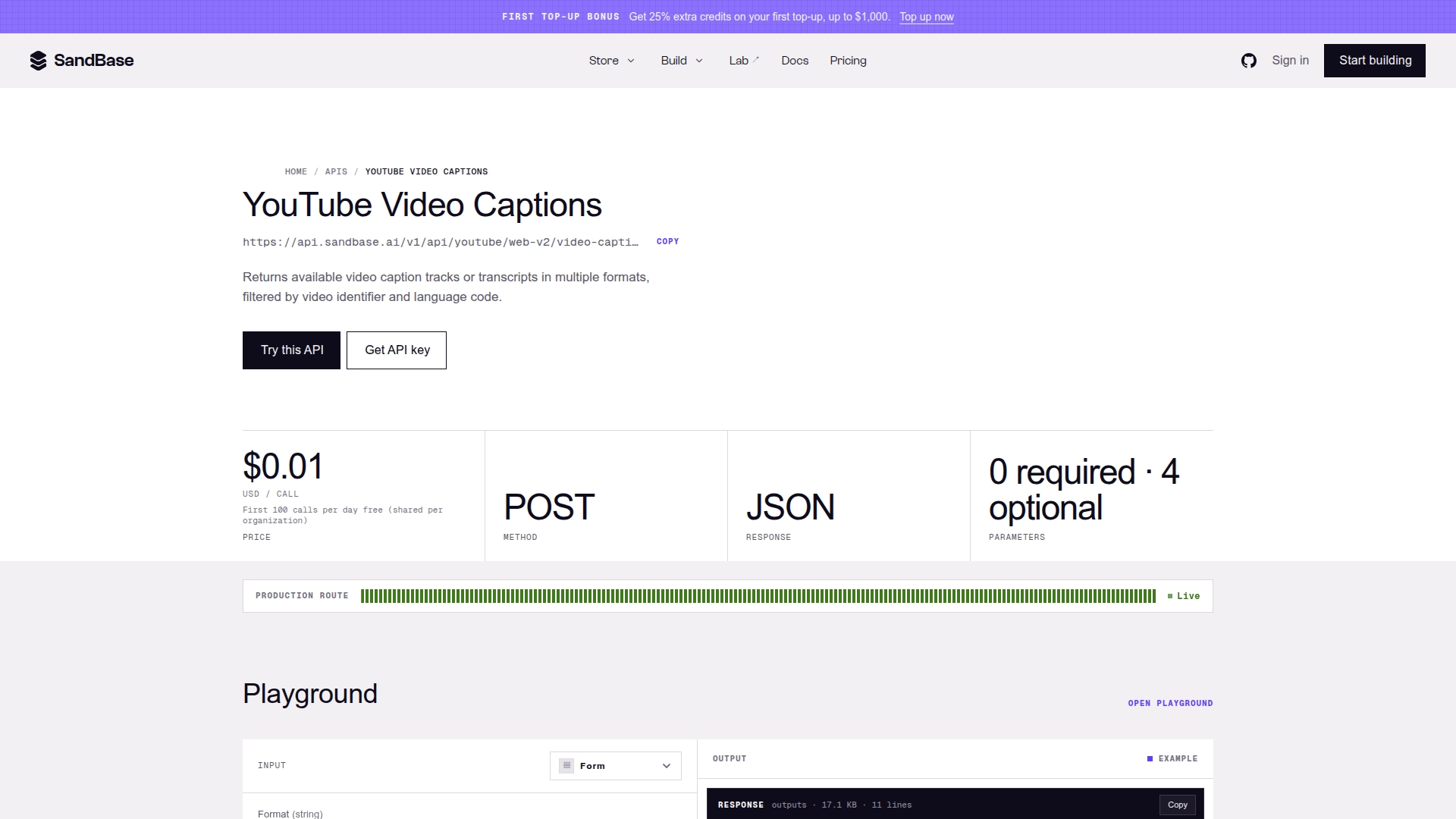 The dedicated API page is the dependency to bookmark when the one-link Lab workflow needs to become repeatable code (captured October 30, 2026).
For platform data APIs, call the endpoint-specific route and read the business payload from outputs[0].data:
curl -X POST 'https://api.sandbase.ai/v1/api/youtube/web-v2/video-captions' \
  -H "Authorization: Bearer $SANDBASE_API_KEY" \
  -H 'Content-Type: application/json' \
  -d '{
    "video_id": "arj7oStGLkU",
    "language_code": "en",
    "format": "srt"
  }'
Do not hard-code an assumed business schema beyond the documented envelope without inspecting a dated real response. Check status, handle a missing outputs[0].data as an error, and log the video ID, requested language, and format. If the language is unknown, request the available caption list first, then ask for a confirmed track.
For a complete production-oriented walkthrough—from channel resolution to video listing, metadata, and captions—read How to Build a YouTube Transcript Pipeline with One API. For search, comments, channels, Shorts, and the wider endpoint family, see the YouTube Public Data API guide.
A practical choice: Lab or API?
| Choose | When it fits | What you own |
|---|---|---|
| Lab tool | One video or a small number of manual research jobs | Review, copying, and export |
| Captions API | A product feature, scheduled job, agent, or repeatable internal workflow | Authentication, retries, storage, and downstream processing |
| Four-step pipeline | Channel-scale discovery before transcript retrieval | Pagination, record selection, and schema mapping |
Start with the Lab when the workflow is still being discovered. Move to the API when the input and desired output are stable enough to automate. Going directly to code is not a badge of seriousness; it is often how teams automate the wrong workflow faster.
FAQ
Is the SandBase YouTube transcript generator free?
The Lab page labels the interactive transcript generator as free and requires a free SandBase sign-in. API pricing and free-call allowances are separate and should be checked on the live YouTube API listing before production use.
Can it transcribe a video without subtitles?
The documented workflow reads human or automatic captions that already exist for the video. It does not promise audio transcription when no caption track is available.
Can it handle YouTube Shorts and youtu.be links?
Yes. The page explicitly lists watch URLs, youtu.be links, Shorts URLs, and raw 11-character video IDs as accepted inputs.
Which download format should I use?
Use TXT for reading, search, LLM input, or indexing. Use SRT when you need subtitle timing in YouTube, a video editor, or another publishing platform. The API also documents XML and JSON3 formats.
Is the AI summary safe to quote?
Treat the summary as a guide, not a source quotation. Find the relevant transcript line, follow its timestamp, and verify the wording in the original video.
Bottom line
The SandBase YouTube Transcript + AI Summary tool solves a specific, common problem cleanly: turn one public YouTube link into text that can be searched, checked, navigated, and reused. Its real advantage is the combination of source-oriented transcript data and task-oriented outputs—summary, chapters, and key points—without making the user assemble several tools first.
Use the Lab tool for the next video in front of you. Use the Video Captions API when that same job needs to run inside an agent, product, or schedule. Keep the boundary clear: available caption tracks are the source, AI outputs are interpretations, and the video remains the final authority.